Quick Answer
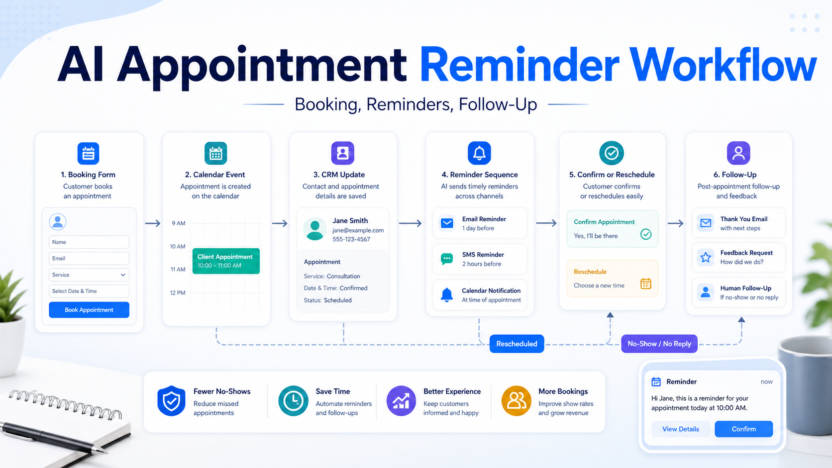
An AI appointment reminder workflow helps small businesses reduce no-shows by capturing booking details, cleaning contact data, sending timed reminders, collecting confirmations, and routing exceptions to a human.
AI sales follow-up workflow AI customer support workflow best AI calendar apps
The Workflow At A Glance
| Stage | What happens | Human review |
|---|---|---|
| Capture | Appointment is booked through a form, calendar, CRM, or manual entry | Confirm the booking is real |
| Normalize | Name, service, date, time, timezone, phone, and email are standardized | Fix missing fields |
| Segment | Workflow decides reminder timing by appointment type | Approve rules |
| Remind | Email, SMS, or messaging reminders go out | Monitor replies |
| Confirm | Customer confirms, cancels, or requests reschedule | Handle exceptions |
| Follow up | No-shows and completed appointments trigger next steps | Review sensitive cases |
Step 1: Define The Appointment Source
Start with the booking source. This could be Calendly, a website form, a CRM record, a Google Calendar event, a phone booking, or a scheduling page. The workflow should not start until the appointment has a clear owner, date, time, contact method, and service type.
Step 2: Clean The Data
AI can help detect missing names, strange phone numbers, duplicate bookings, and unclear appointment notes. It should not guess critical fields. If the time, location, or contact details are missing, route the booking to a human.
Step 3: Build Reminder Rules
Most small businesses need at least two reminders: one earlier reminder and one same-day reminder. Medical, legal, consulting, coaching, repair, and beauty appointments may need different timing and wording.
Step 4: Add Confirmation And Rescheduling
A reminder workflow is stronger when it lets customers confirm or reschedule. If someone replies with a problem, the workflow should create a task for a human instead of forcing the customer through a rigid automation.
Step 5: Handle No-Shows
No-shows need a separate path. The workflow can tag the customer, send a polite follow-up, create a CRM note, or notify the assigned team member.
Practical Use Cases
Clinics And Service Businesses
Use reminders for consultations, follow-ups, onboarding calls, inspections, and recurring services.
SaaS Onboarding
Customer success teams can remind new customers about onboarding sessions and send prep material before the call.
Sales Calls
Sales teams can reduce missed demos by confirming time, timezone, and meeting link before the appointment.
Tools That Can Fit
Calendly, Google Calendar, Outlook Calendar, HubSpot, Zapier, Make, Twilio, Mailchimp, and CRM systems can all fit parts of the workflow. The best stack depends on your booking source and customer communication channel.
Pricing Notes
Pricing last checked on July 7, 2026. Use official vendor plan pages for any paid scheduling, SMS, CRM, or automation limits. SMS costs and CRM automation limits often matter more than the calendar tool itself.
Common Mistakes
- Sending too many reminders.
- Forgetting timezone handling.
- Letting AI guess missing appointment details.
- Sending the same reminder for every service type.
- Ignoring replies that require a human.
Final Recommendation
Build the workflow around confirmation, not just reminders. A useful appointment workflow reduces no-shows, gives customers an easy reschedule path, and alerts humans when automation is not enough.
FAQs
Can AI reduce missed appointments?
AI can help organize reminder timing, message wording, and exception routing, but it works best with clear booking data.
Should reminders use SMS or email?
Use the channel your customers actually respond to. Many service businesses use both, with SMS closer to the appointment.
Should no-shows be automated?
Only the first follow-up should be automated. Repeated no-shows or sensitive situations should involve a human.