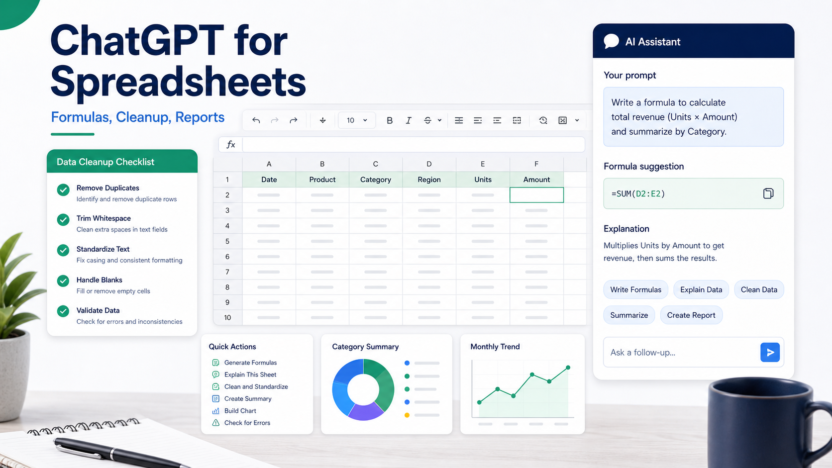
ChatGPT can be useful for spreadsheet work, but only when the workflow is disciplined. It can write formulas, explain spreadsheet logic, clean messy data, draft summaries, suggest charts, and help create reporting checklists. It can also produce confident mistakes if the prompt is unclear or the data is sensitive.
This guide explains how small businesses can use ChatGPT for Excel and Google Sheets without pretending the AI is a spreadsheet accountant.
Quick Answer
Use ChatGPT as a spreadsheet assistant for formula drafting, cleanup plans, reporting summaries, and logic explanations. Do not treat its output as final until you test it against known examples. For sensitive data, redact or simplify the data before prompting.
Best For
- Writing formulas from plain language.
- Explaining existing formulas.
- Cleaning messy names, categories, and text fields.
- Creating report summaries from verified numbers.
- Planning dashboards, pivot tables, and charts.
- Drafting Google Apps Script or automation ideas.
Not Best For
- Final financial calculations without review.
- Sensitive customer or employee records without policy approval.
- Complex models where a small formula mistake can create material risk.
- Replacing a spreadsheet expert for tax, payroll, legal, or compliance work.
Setup Checklist
Before using ChatGPT with spreadsheets, define the task, remove sensitive data, provide column names, include sample rows, and describe the expected output. The prompt should specify whether the formula is for Excel or Google Sheets because functions and syntax can differ.
Formula Prompt Template
Use this structure:
“`text I am using [Excel or Google Sheets]. Columns: A = Date B = Customer type C = Order value D = Status
Goal: Write a formula that returns [expected result].
Rules:
“`
- Include only rows where Status is Paid.
- Exclude blank dates.
- Return 0 if no rows match.
This prompt gives ChatGPT the context it needs. A vague prompt such as "write a formula for revenue" is too easy to misinterpret.
Use Case 1: Formula Writing
In a typical small business workflow, a team may need formulas for revenue totals, overdue invoices, lead scores, product categories, inventory flags, or campaign performance. ChatGPT can turn the business rule into a starting formula.
The safe process is to test the formula on a few rows where you already know the answer. If the formula fails, give ChatGPT the failed formula, expected output, actual output, and sample rows.
Use Case 2: Data Cleanup
ChatGPT can help plan cleanup rules for inconsistent names, locations, tags, product categories, and notes. For example, it can suggest how to standardize country names, split full names into first and last names, or group messy support ticket categories.
For private spreadsheets, do not paste the full dataset. Provide a few anonymized sample rows and ask for formulas or cleanup logic.
Use Case 3: Report Summaries
ChatGPT can turn verified numbers into a plain-English summary for a weekly report. The key word is verified. The spreadsheet should produce the numbers first; ChatGPT should help explain them clearly.
A manager might paste a summary table with monthly revenue, leads, conversion rate, and churn, then ask for a concise executive summary. The output should be reviewed before sending.
Use Case 4: Chart Planning
ChatGPT can recommend chart types based on the question. Trend over time usually fits a line chart. Category comparison often fits a bar chart. Share of total can use a donut chart, but only when the number of categories is small.
The AI can help pick a visualization, but it should not invent the data story. The chart must reflect the actual spreadsheet.
Use Case 5: Google Sheets Automation
For Google Sheets, ChatGPT can help draft Apps Script ideas, trigger logic, and formulas for workflow automation. A small team could use it to outline a script that sends an email when a row status changes or creates a task when a form submission arrives.
The script should be reviewed before being used on business-critical data.
Practical Examples
Sales Pipeline
A sales team could ask for a formula that counts open deals by stage, flags deals with no activity in 14 days, or calculates expected revenue from probability and deal value.
Support Tracking
A support team could categorize tickets by keyword, summarize weekly ticket volume, or flag unresolved tickets older than a threshold.
Marketing Reporting
A marketing team could ask ChatGPT to explain a report table, generate a weekly summary, or suggest a dashboard layout for leads, conversion rate, spend, and revenue.
Operations
An operations team could clean vendor names, identify duplicate invoice numbers, or create a checklist for monthly spreadsheet QA.
Formula QA Checklist
| Check | Why It Matters |
|---|---|
| Test known examples | Confirms the formula matches real business logic |
| Check blanks | Prevents errors from empty cells |
| Check text vs numbers | Avoids mismatched data types |
| Check date formats | Prevents wrong time ranges |
| Check edge cases | Catches unusual rows before reports go out |
ChatGPT vs Built-In Spreadsheet AI
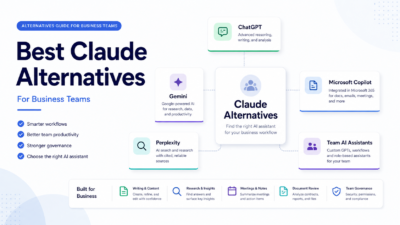
ChatGPT is flexible for explaining logic, writing formulas, and creating step-by-step plans. Microsoft Copilot may fit better when the workflow is inside Microsoft 365. Google Gemini for Workspace may fit better for teams deeply inside Google tools. The best approach depends on where the spreadsheet work happens.
Safety Rules
Do not paste sensitive customer, financial, employee, medical, or legal data unless your business policy allows it. Replace real names with sample labels. Summarize the data structure instead of uploading the full file. Treat AI formulas as drafts until tested.
Final Recommendation
Use ChatGPT for spreadsheet thinking, not blind spreadsheet execution. It is useful for formulas, cleanup logic, report summaries, and troubleshooting. The best workflow is prompt, generate, test, revise, and document the final logic.
For related productivity guidance, see ChatGPT Business vs Microsoft Copilot and AI knowledge base workflow.
FAQs
Can ChatGPT write Excel formulas?
Yes. ChatGPT can help draft formulas, explain formulas, troubleshoot errors, and convert plain-language logic into spreadsheet syntax. Users still need to test the formula against real data.
Can ChatGPT work with Google Sheets?
Yes. It can help write Google Sheets formulas, Apps Script ideas, cleanup steps, and reporting logic. It does not automatically know your sheet unless you provide safe context.
Should I upload business spreadsheets to ChatGPT?
Only upload data your company policy allows. Remove sensitive customer, financial, health, legal, or employee data unless the business has approved the workflow.
What are good ChatGPT spreadsheet use cases?
Useful use cases include formula writing, data cleaning, categorization, report summaries, lookup logic, pivot-table planning, chart explanation, and QA checklists.
Can ChatGPT replace a spreadsheet expert?
No. It can speed up drafting and explanations, but spreadsheet logic still needs review, especially for financial, operational, or customer-facing decisions.
What should I include in a formula prompt?
Include the spreadsheet app, column names, sample rows, expected output, edge cases, and whether you want Excel or Google Sheets syntax.
Can ChatGPT debug broken formulas?
Yes. Paste the formula, explain the error, describe the columns, and show a few representative sample rows. Do not include private data unless approved.
Can ChatGPT create reports?
It can help outline report structure, write summary language, and suggest charts. The numbers and conclusions should be verified against the spreadsheet.
Is ChatGPT better than Copilot for Excel?
ChatGPT is flexible for explanation and formula drafting. Microsoft Copilot may fit better when work is deeply inside Microsoft 365. The right choice depends on workflow.
What is the biggest risk?
The biggest risk is trusting a formula or summary without testing it. Always validate formulas on known examples before using them for business decisions.
Prompt Library
Use reusable prompts for common spreadsheet tasks. For formulas, ask for one formula plus a plain-English explanation. For cleanup, ask for rules and a formula. For reports, provide verified summary numbers and ask for a concise narrative. For troubleshooting, provide the formula, error, expected result, and sample rows.
Common Mistakes
Do not paste full private workbooks into AI. Do not accept a formula without testing it. Do not ask for a formula without specifying Excel or Google Sheets. Do not ask AI to interpret a report unless the input numbers are already verified.
A spreadsheet workflow is only safe when the team knows which parts are AI-assisted drafts and which parts are approved business logic.
Safe Spreadsheet Prompting
The safest way to use ChatGPT with spreadsheets is to provide structure without exposing sensitive raw data. Share column names, sample rows with anonymized values, the expected output, and the tool being used. Excel and Google Sheets do not always use identical formulas, so the prompt should specify the platform. Ask for an explanation with the formula so the user can understand what is being calculated.
For example, a finance team could ask for a formula that flags overdue invoices based on due date and payment status. A sales team could ask for a lookup formula that matches leads to account owners. An operations team could ask for a method to normalize inconsistent vendor names. In each case, the output should be tested on sample rows before being applied to a full workbook.
Quality Control Steps
After ChatGPT suggests a formula or cleanup method, test it on rows where the answer is already known. Check empty cells, duplicate values, text casing, date formats, currency symbols, and edge cases. For reports, reconcile totals against the original data. For charts, verify that labels and ranges match the intended story.
When ChatGPT Is Not Enough
ChatGPT is not a replacement for spreadsheet governance. If a workbook drives payroll, taxes, financial reporting, legal reporting, or customer billing, use stronger review controls. AI can help draft formulas and explain logic, but the business remains responsible for accuracy. Treat AI output as a draft, not as an approved calculation.
Practical Examples For Small Teams
A sales manager could ask ChatGPT to write a formula that flags stale leads based on last contact date and pipeline stage. A finance assistant could ask it to explain why a lookup formula is returning errors. A marketing analyst could ask it to group campaign rows by channel and suggest a pivot table layout. An operations manager could ask for a cleanup rule that standardizes vendor names before reporting.
These examples are useful because they keep AI close to the user's real spreadsheet task. The user still owns the data and the final decision. ChatGPT provides a formula, explanation, or workflow suggestion that must be tested.
Building A Reusable Team Workflow
Teams should create a small internal prompt library for common spreadsheet tasks. Include prompts for formula writing, formula debugging, data cleanup, report summaries, chart recommendations, and QA checks. Each prompt should specify the spreadsheet tool, column names, expected result, and sample rows.
A reusable workflow reduces risk because team members stop asking vague questions. It also makes review easier because the team knows what type of output to expect. For example, a formula prompt can require one formula, one explanation, and three edge cases to test.
Data Privacy Rules
Do not paste customer lists, payroll data, financial records, private emails, or regulated data into an AI assistant without an approved company policy. Use anonymized sample rows when possible. For sensitive spreadsheets, ask ChatGPT for a method or formula pattern rather than sharing full data. This keeps the workflow useful without making privacy worse.
Implementation Notes
Teams can make ChatGPT safer by creating a spreadsheet review rule: every AI-generated formula must be tested on known examples before it is used on live data. Every report summary should be tied back to verified totals. Every cleanup method should be reviewed before overwriting original data.
Keep a backup copy of important spreadsheets before applying AI-assisted formulas or cleanup logic. This is a simple habit, but it prevents small mistakes from becoming operational problems.